What you will learn
- Set up your account and your first course
- Add materials the AI Tutor can read, and check they are ready
- Ask good questions and check the sources behind each answer
- Turn your materials into flashcards, quizzes and a study plan
- Keep your work private and understand your monthly allowance
Read it here
Welcome
Studentlytica AI helps you study from your own course materials. You add your lecture notes, slides and readings, and Studentlytica AI helps you understand them, practise them and plan your study time. It works in your web browser on a phone or a laptop, and your work is the same on both.
This guide walks you through your first study session, step by step. It takes about 30 minutes, and you can stop and come back at any point: your work is saved as you go.
Studentlytica AI is for adults (18 or over), such as university and college students, graduates and professional learners.
Step 1Create your account
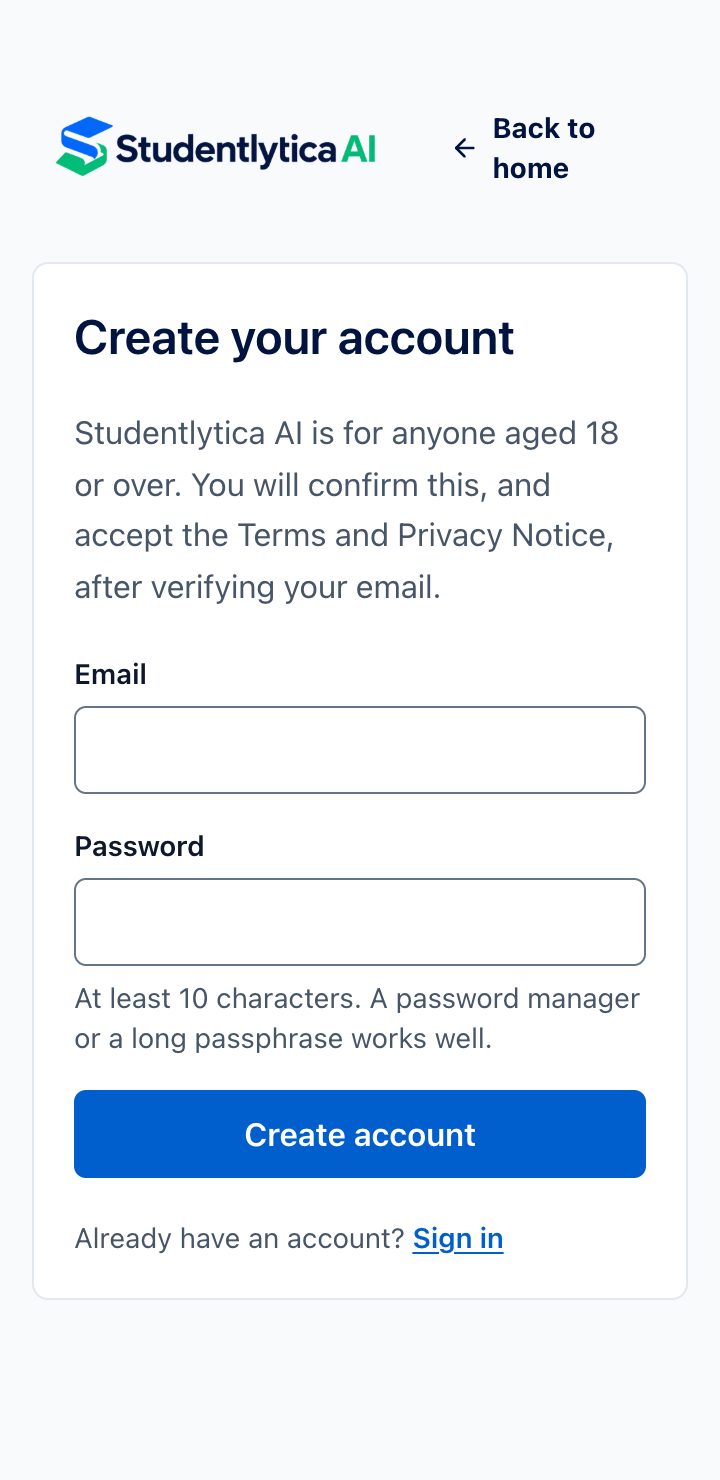
- Go to studentlytica.ai and choose Start learning free.
- Enter your email address and a password of at least 10 characters. A long passphrase, or a password manager, works well.
- Open the confirmation email we send you and select the link in it. If you cannot find it, check your spam folder.
- Tell us your name, your education level and, if you like, your field of study. Confirm that you are 18 or over, and accept the Terms of Use and the Privacy Notice.
You start on the Free plan. You can upgrade later if you need more.
Step 2Create your first course
A course keeps your materials, practice and plans for one subject together.
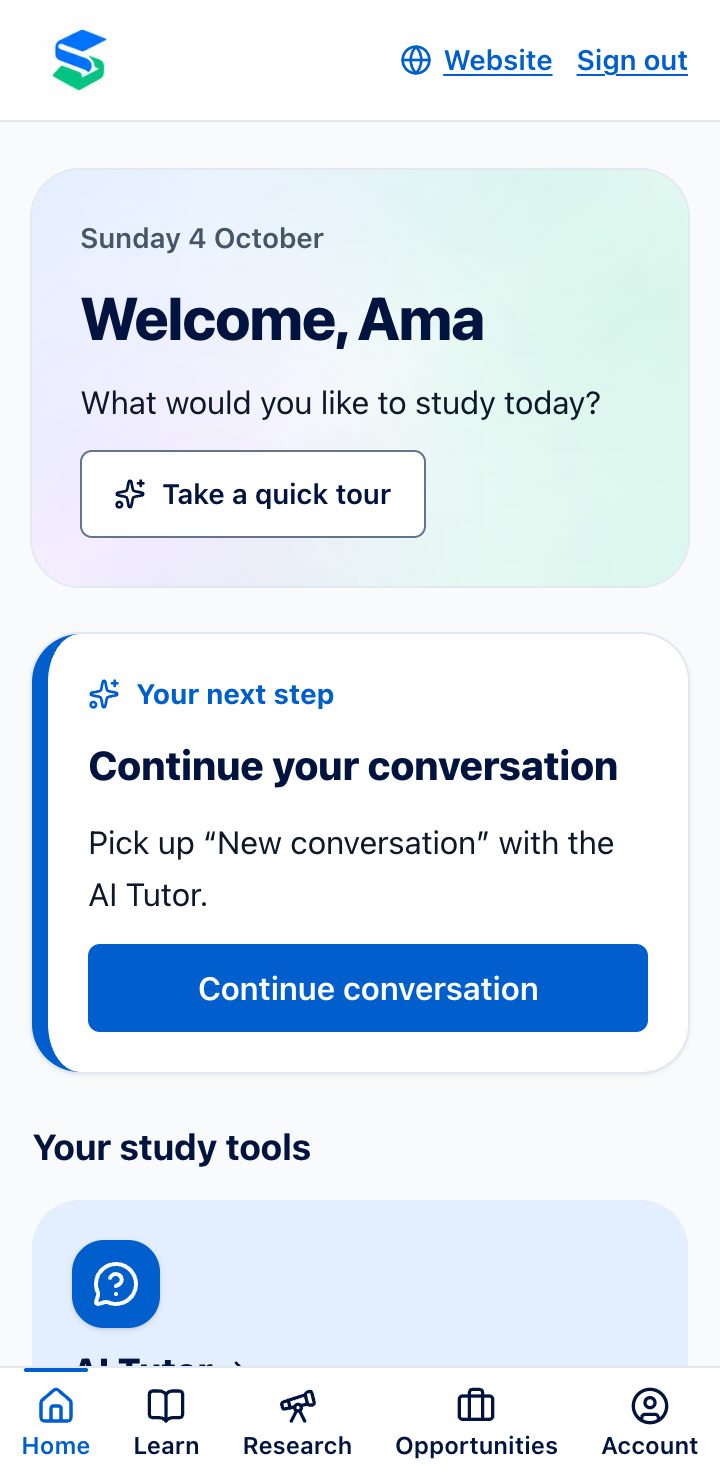
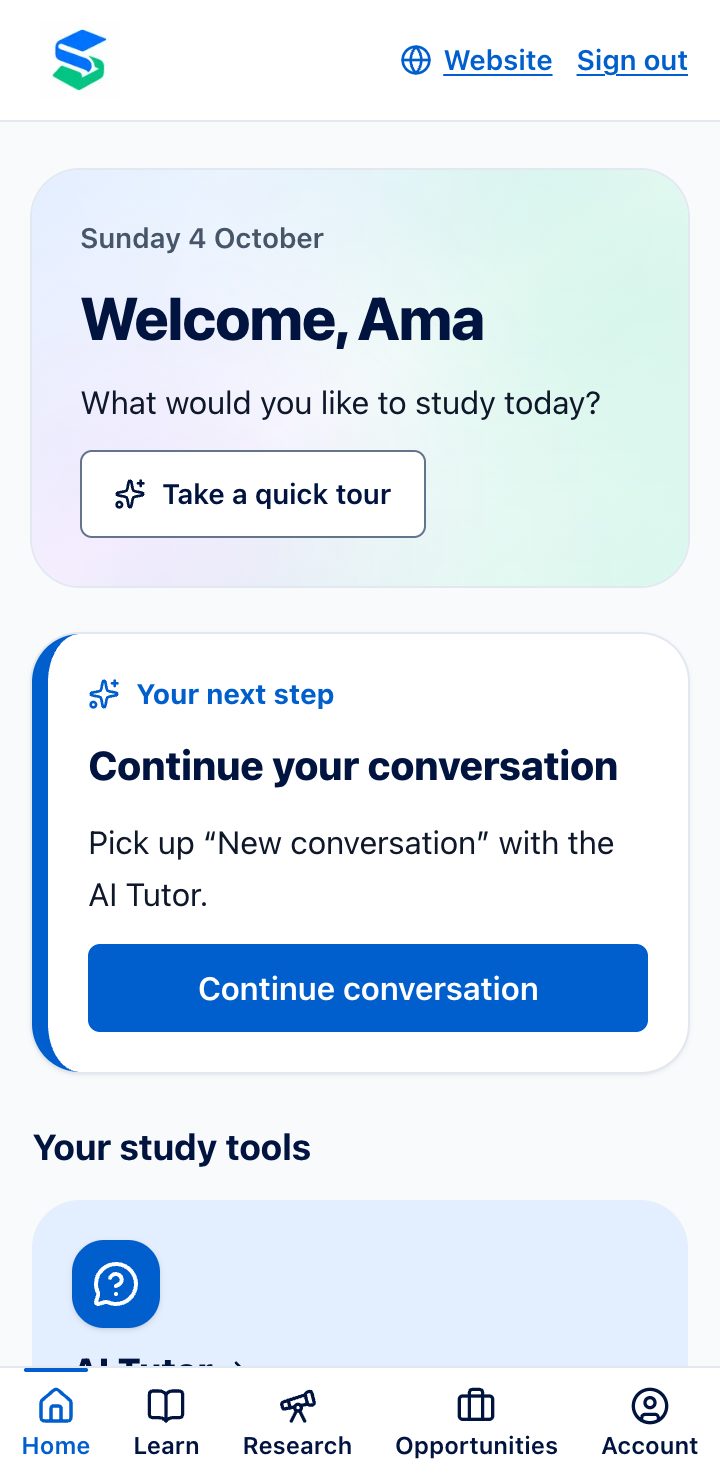
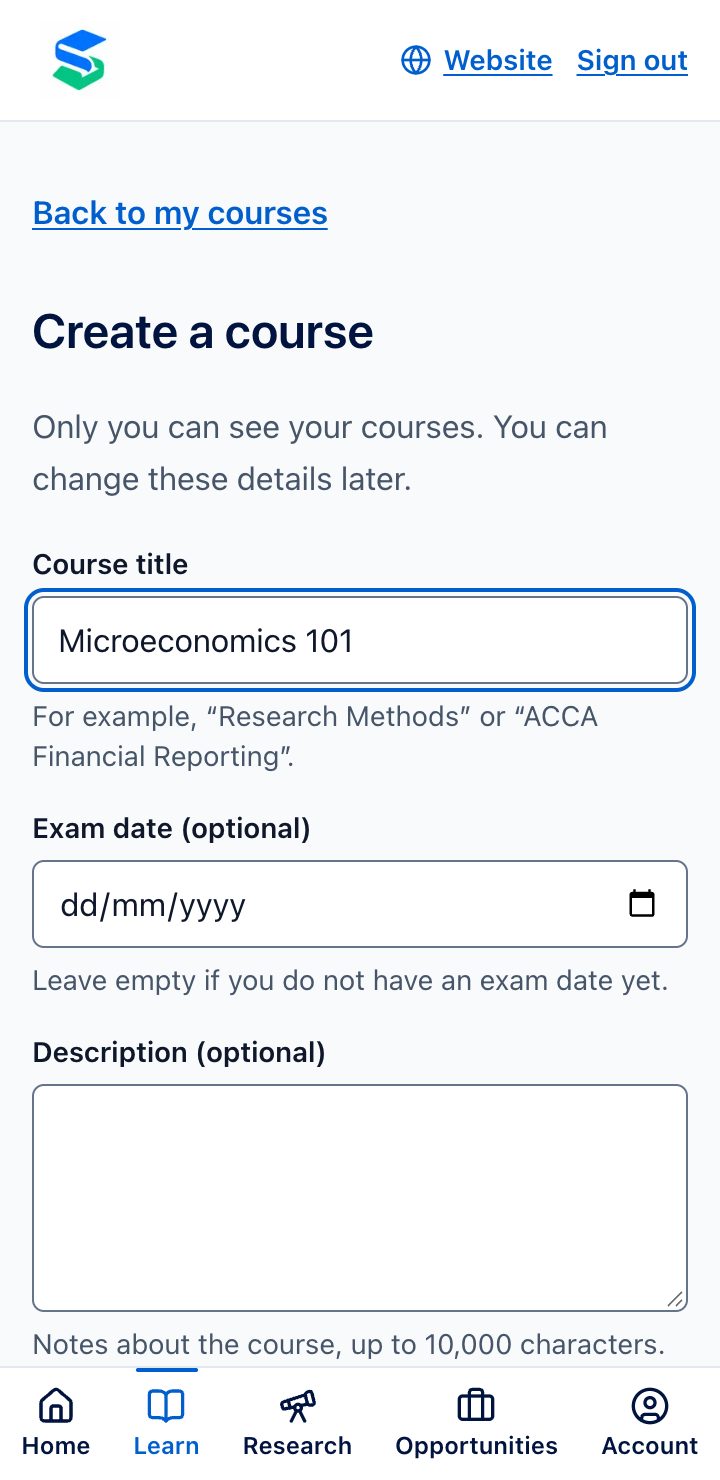
- On the Home page, choose Create course.
- Give it a clear name, such as "Microeconomics 101".
- If you know when the exam is, add the exam date. The planner uses it later.
Step 3Add your materials
Open your course and choose Add material. You can add:
- PDF files,
- Word documents (.docx),
- PowerPoint slides (.pptx),
- plain text and Markdown files,
- or text you paste in directly.
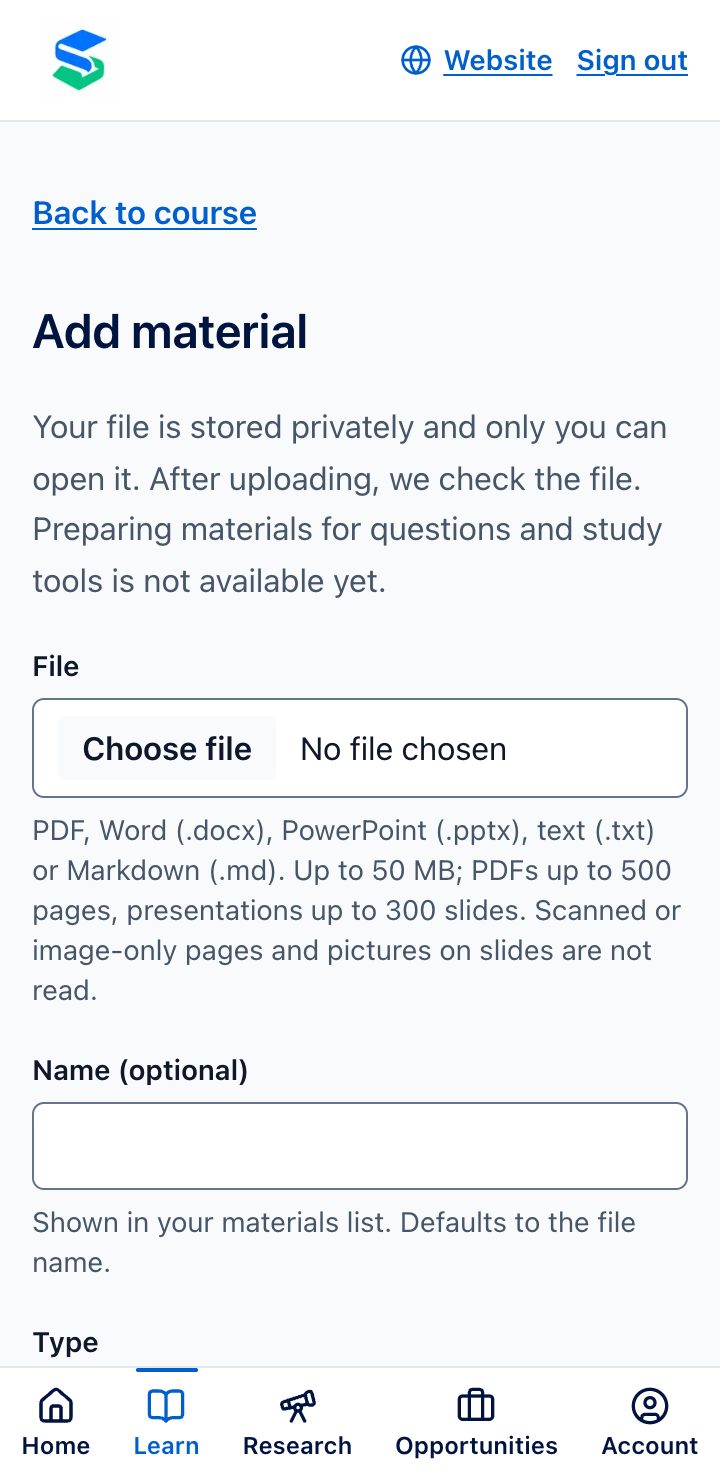
Studentlytica AI reads each material, keeps track of which page, slide or section every part came from, and prepares it for searching. A long file can take a few minutes. You can see the progress, and the material shows as ready when it is done.
Check what could be read. If some pages could not be read, for example scanned pages that are pictures of text, the material is marked as only partly readable and the affected pages are listed. The AI Tutor cannot see text it could not read, so for scanned documents, use a version with selectable text if you have one.
Use materials you are allowed to use. Add your own notes and the materials your course gives you. Your materials stay private to your account.
Step 4Ask the AI Tutor
The AI Tutor explains your materials and shows you exactly where each point came from.
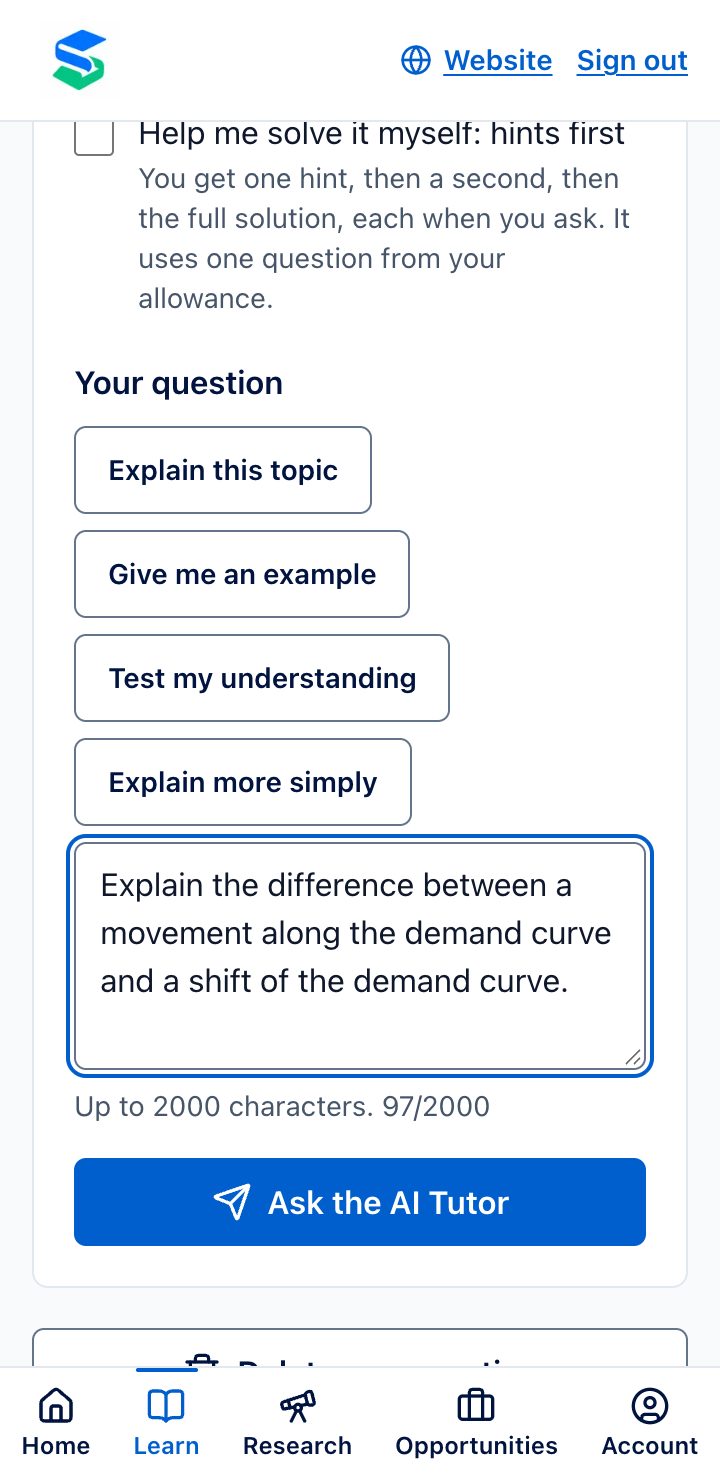
- Go to AI Tutor, choose your course, and type a question. For example: "Explain the difference between a movement along the demand curve and a shift of the demand curve."
- Under Materials to use, leave everything unticked to use all ready materials in the course, or tick only the ones you want.
- Send the question and watch the progress: the AI Tutor finds relevant passages, prepares an explanation and checks it against your materials.
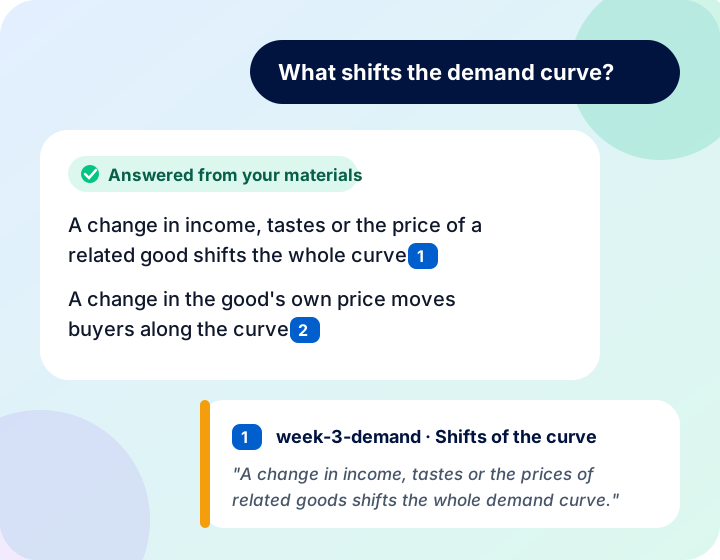
Each answer is marked:
- Answered from your materials,
- Partly answered from your materials, or
- Not enough evidence in your selected materials. The AI Tutor does not guess. It suggests what to do next, such as selecting more materials, rephrasing your question or adding a material that covers the topic.
Numbered sources appear under each answer. Open them to read the exact passage, with its page or slide. Always check a source when an explanation surprises you. AI can make mistakes, and the source lets you judge for yourself.
Good questions to try:
- "Explain this topic: …" for a clear explanation.
- "Give me an example of …" to see an idea in use.
- "Ask me a question to test my understanding of …" to check yourself.
- "Explain more simply: …" when an explanation is hard to follow.
Step 5Practise with Study tools
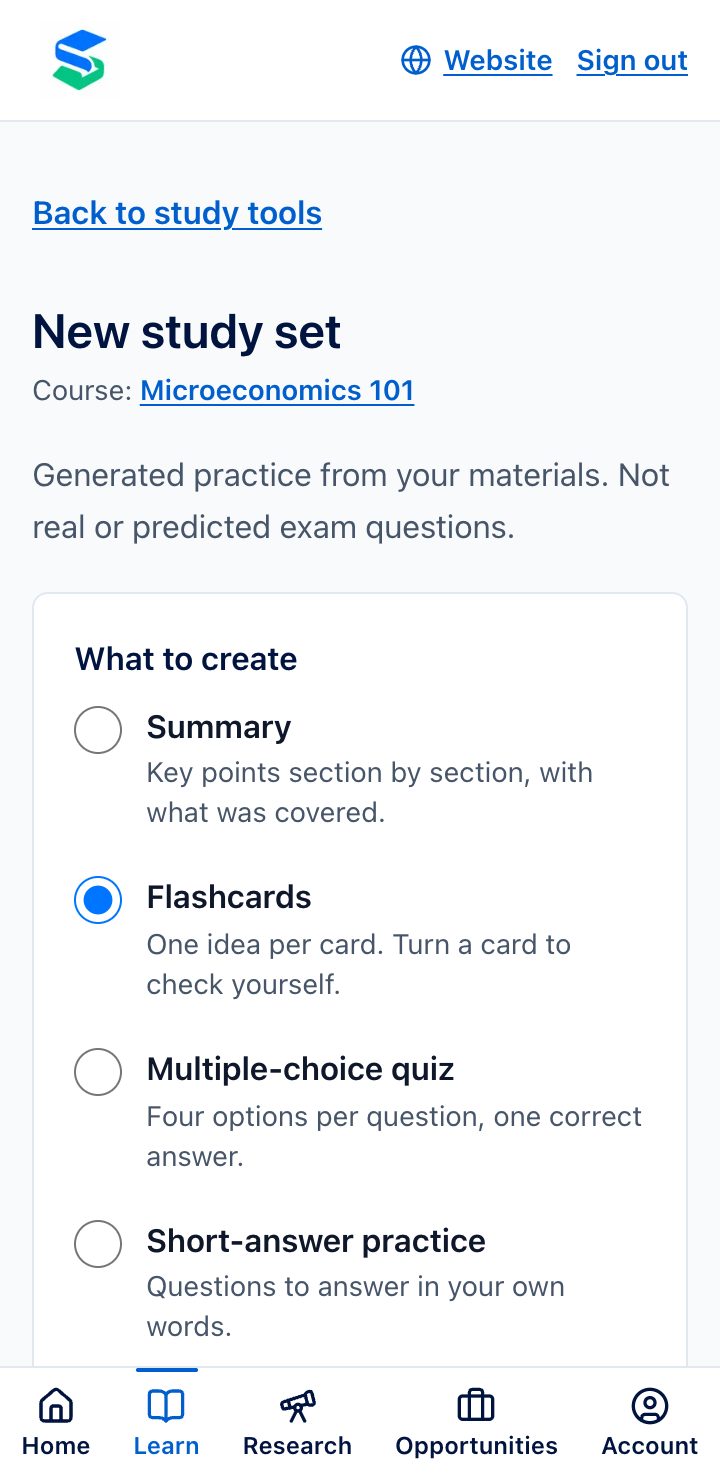
Reading an explanation is a start. To remember it, you need to practise recalling it. Go to Study tools and create a study set from your materials. Choose:
- Summary: the key points, section by section.
- Flashcards: one idea per card. Turn a card over to check yourself.
- Multiple-choice quiz: four options per question, one correct answer.
- Short-answer practice: questions you answer in your own words, with feedback on your answer.
Choose a difficulty (introductory, intermediate or advanced), and Studentlytica AI creates the set from your materials, with sources.
Inside a course you will also find:
- Review flashcards: cards come back for review over the following days and weeks, spaced out so you remember them for longer.
- Practice tests: choose how many questions and, if you like, which topics, to see how ready you are.
- Study kit: a topic map, notes and summary, a quiz and flashcards, made together for a course.
- Topics: the main topics found in your materials.
Step 6Plan your week
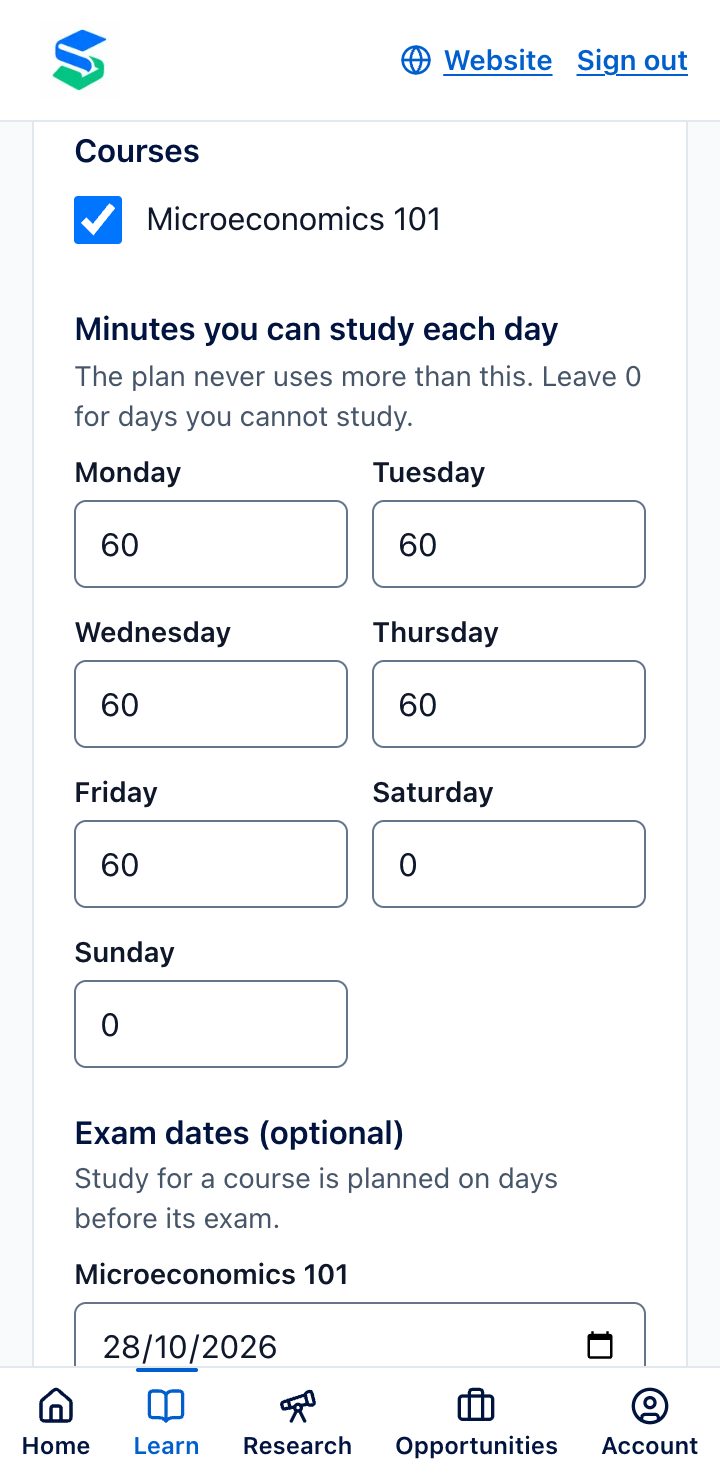
Go to Planner and create a new plan. Choose your courses and, if you like, the topics to study and your exam dates. Then say how many minutes you can study on each day of the week (leave 0 for days you cannot study). Studentlytica AI proposes a schedule of study tasks, and nothing changes until you choose Use this plan. As you go, mark each task done or skipped. If your week changes, make a new plan: you see the proposal before it replaces your current one.
Step 7Research help (optional)
If you are writing an essay, a project or a thesis, Research helps you find and understand academic papers. You can search a large catalogue of scholarly works, add papers to a research project, and see where the papers agree and disagree.
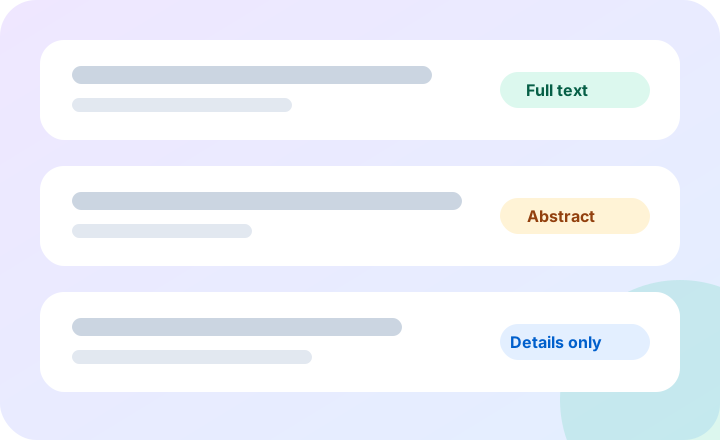
Studentlytica AI always tells you how much of a paper it could see: only the catalogue details, the abstract, or the full text. It never invents papers or findings. Research help supports your judgement; it does not replace reading the papers yourself.
Your monthly allowance
Each plan includes a monthly allowance for things like AI Tutor questions, study sets and research searches. You can see what you have left on the Home page and under Account. Allowances reset on the first day of each month (Ghana time). If an AI task cannot be completed, it does not use your allowance.
The Free plan lets you try everything. Pro and Max include much more. Pay through Paystack in Ghana cedis, either for one month or for a semester of 4 months, which costs less. Nothing renews or charges automatically. See the prices and allowances at studentlytica.ai.
Your privacy
- Your materials, questions and saved work are private to your account.
- To answer a question or create a study set, Studentlytica AI sends our AI provider, OpenAI, only the passages needed for that task and your question. We never send your name, email address or profile.
- Your materials are never used to train AI models.
- You can delete any material, or your whole account, at any time from Account.
The Privacy Notice at studentlytica.ai explains everything in full.
Your first session checklist
- Create your account and confirm your email.
- Create a course for a subject you are studying now.
- Add one or two materials and wait until they are ready.
- Ask the AI Tutor three questions, and open the sources for one answer.
- Create a set of flashcards, and review them.
- Try a short quiz or short-answer practice.
- Make a plan for the next week.
- Come back tomorrow to review your flashcards.
Studying well with AI
AI can explain, quiz and organise, but the learning still happens in your head. A few habits help:
- Try first, then ask. Attempt a question yourself before asking the AI Tutor.
- Explain it back. After reading an explanation, close it and explain the idea in your own words.
- Check the sources. Every answer shows where it came from. Use them.
- Follow your institution's rules. Check your university's rules on using AI in assessed work, and say when you used AI if they require it.
Getting help
If something does not work as this guide describes, or you have a question, email us at info@studentlytica.ai.